Nettoyage de l'imprimante de cartes Rio Pro
The Rio Pro printer by ultra electronics card systems is a powerful tool for creating ID badges. To keep your Rio Pro working properly, you should clean the printer every time you change the dye film ribbon.
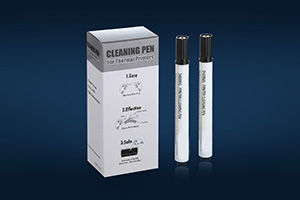
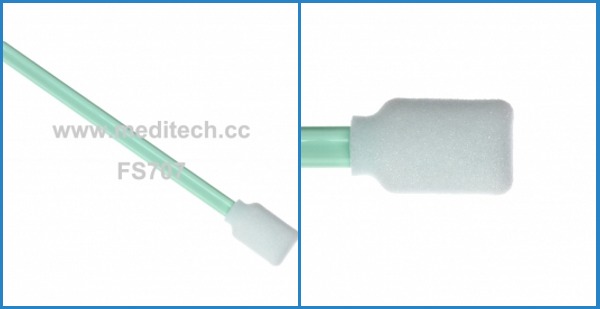
To do this, you need a Rio Pro turned on, a new carte de nettoyage et stylo de nettoyage as well as the new blue sticky roller, you can get these from Meditech website: http://www.meditech.cc/products/card-printers-cleaning-kits/magicard-compatible-cleaning-kit/c-44/.
Steps for cleaning Rio Pro:
1.First, remove the card hopper and open the printer to remove the dye film ribbon and the blue sticky roller underneath it. Remove the metal bar from this blue roller, and set it aside in a safe place.
2. Use the menu on the front to the printer and navigate to the cleaning rollers option. Use the keys to work through the guidance messages ensuring your printer is ready for cleaning.
3. Open the pouch containing the new cleaning card and remove the card. Select “yes” on the printer, and insert the cleaning card. While the card is in the printer, the parts left by the printing process are being removed with the alcohol in the card.
4.Flipping the card and repeating this process at least two to four times in order to get everything really clean. The cleaning process takes only a few seconds, and when it’s done you can clearly see the result.
5. Sometimes the Rio Pro’s rollers maybe really dirty. In this case, you need to manually clean. Leave the automatic clean mode, and select move card from the main menu.
6. For the cleaning card in half, and press it onto the main middle roller while holding down one of the move card button. Move the cleaning card back and forth for around 15 to 20 seconds. You can clearly see the dirt and debris removed by this process.
7. You may also wish to clean the Rio intake roller. Turn the printer around and pulled the upward move card button while pressing the cleaning card onto the Rio roller for 15 to 20 seconds. Again, this cleaning process leaves a clear result.
8. Finally, it is important to clean the printhead on the Rio pro. Gently move the pen across the printhead to remove any dust or residue.
9. After cleaning you’ll install a new sticky roller to the printer. Remove the blue roller from the dye film box, and insert the metal bar which you set aside earlier. Unwrap the roller and snap it into place directly above the orange roller towards the back of the unit. Removed the new roller dye film from the box and unwrap it. Place the dye film into the printer.
10. Gently close the lid of the printer and replace the card hopper in the back of the unit.
Your Rio Pro is clean and ready to print.
 Meditech