
Buscar productoBuscar puesto

Zebra P430i & P330i Printer Cleaning Guide: Easy Step-by-Step Process

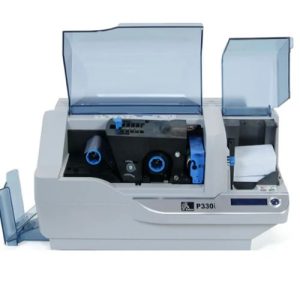
Keeping your Zebra P430i or P330i card printer properly maintained is the key to producing sharp, professional ID cards and extending the life of your device. Over time, dust, card debris, and ribbon residue can accumulate inside the printer, leading to streaks, faded images, or even system errors. The good news is that Zebra printers are designed for easy maintenance using cleaning cards and swabs.

In this guide, we’ll walk you through the step-by-step cleaning process for Zebra P430i and P330i printers so you can keep your machine in peak condition.

Why Cleaning Your Zebra P430i & P330i Printer Matters

Because card printers operate with high precision, even tiny amounts of dirt or residue can interfere with print quality. Regular cleaning ensures:

  • Consistent, high-quality card printing
  • Fewer card jams and misfeeds
  • Protection of the print head from wear and damage
  • Longer lifespan of internal components

While your printer will prompt you when cleaning is due, building a routine maintenance schedule will help you avoid downtime and costly repairs.

Step-by-Step Cleaning Instructions

Step 1: Start the Cleaning Cycle

  • Leave the printer powered on.
  • Hold down the front panel button until the LCD displays: “Remove ribbon and close head.”

Step 2: Remove the Ribbon

  • Abra la tapa de la impresora.
  • Push the blue release lever forward and lift the print head carriage.
  • Remove both ribbon spools.
  • Close the carriage.
  • The LCD will then show: “Empty feeder and press button.”

Step 3: Prepare the Card Feeder

  • Open the feeder cover.
  • Remove all cards except the last one.
  • Press the button to eject the bottom card safely.
  • The display will read: “Load cleaning card in feeder.”

Step 4: Insert the Small Cleaning Card

  • Take a small cleaning card from its pouch.
  • Place it into the feeder; the belt will pull it halfway in automatically.
  • Do not force the card.
  • The printer will draw it through, cleaning the feeder and rollers.
  • The LCD will read: “Cleaning printer.”
  • Once complete, the card ejects and the display will show: “Press button to continue.”

Step 5: Use the Long Cleaning Card

  • Open the long cleaning card package.
  • Press the button until the LCD shows: “Feed long cleaning card in exit.”
  • Insert the long card into the exit slot.
  • The printer will move it back and forth to clean internal rollers.
  • The LCD will again show: “Cleaning printer.”
  • Once ejected, the printer returns to “Ready” status.

Step 6: Reload the Printer

  • Reinsert the ribbon spools.
  • Reload your card stack.
  • The printer is now ready for use.

Step 7: Clean the Print Head (If Necessary)

If streaks or print issues remain after standard cleaning, manually clean the print head:

  1. Turn the printer off.
  2. Open the carriage and remove the ribbon.
  3. Use a Zebra-approved cleaning swab (pre-saturated with cleaning solution).
  4. Gently wipe the print head elements from side to side.
  5. Let the head dry completely.
  6. Reload the ribbon, power the printer back on, and resume printing.

By following these steps, your Zebra P430i and P330i printers will continue to deliver clear, professional-grade ID cards with minimal interruptions.

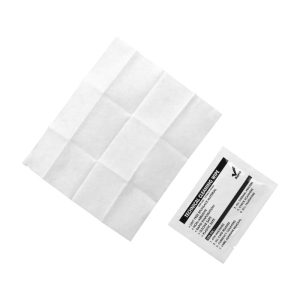
For optimal performance, use Meditech’s Zebra Cleaning Kits, designed specifically for P430i & P330i models. Regular use will not only keep your printer spotless but also extend its overall service life.
El prev: El siguiente:

Recomendaciones relacionadas

  • How to Clean Zebra Printer Head with Snap Swab

    1636

    The print head is one of the most important components in your Zebra printer. Over time, dust, ribbon particles, and debris can accumulate, leading to streaks, faded text, or poor image quality. Cleaning the print head with a Snap Swab helps rest...

    Ver detalles
  • ¿Cómo limpiar la impresora de tarjetas Zebra P330i?

    1966

    Después de imprimir 1000 tarjetas de color o 5000 tarjetas monocromáticas, la pantalla LCD de la Zebra P330i mostrará "limpiando impresora", y usted debe limpiar la impresora tan pronto como sea posible para asegurar buenos resultados de impresión. Entonces esto es un problema, cómo limpiar la Zebra P33...

    Ver detalles
  • ¿Cómo limpiar una impresora?

    1726

    Ventajas: Cuando su trabajo de impresión no está a la altura, puede deshacerse de manchas, líneas blancas y reducir los atascos de papel simplemente limpiando su impresora. Por supuesto, la verdadera ventaja de la limpieza es que te ahorra dinero al prolongar la vida útil de tu impresora....

    Ver detalles
  • Cómo utilizar la pluma de limpieza del cabezal de impresión?

    1958

    ¿Cómo utilizar la pluma de limpieza de la impresora? El uso de impresoras térmicas durante mucho tiempo, porque la cabeza de la cabeza de impresión de residuos de tóner conducen a la mala impresión, un impacto directo en la impresora térmica. ¿Cómo limpiar el cabezal de la impresora? Ahora, vamos a introd...

    Ver detalles
  • Aplicación de los bastoncillos de limpieza en la industria del automóvil

    1734

    El coche es una herramienta de tráfico común en la vida, por lo que el mantenimiento del automóvil también es muy importante. ¿Por qué los fabricantes de hisopos de limpieza quieren hablar sobre el coche? Porque en el mantenimiento y reparación ,nuestros productos también es adecuado para el automóvil. Hay...

    Ver detalles
¡Amplíe más!

Introduzca el resultado aritmético.

Cálculo incorrecto, vuelva a introducirlo.