 Meditech


ATM Cartão de limpeza para cabeça de impressão térmica
3212Wipe Material : 100% Polyester Spunlace Material Size Dimension : 4.5aa x 4.5aa ( Inches) Thickness Tolerance Closed wrapping Applications : + Al...
Ver pormenoresPesquisar produtoProcurar publicação
Regular maintenance is key to keeping your Zebra ZT411 and ZT421 printers running smoothly. Over time, dust, ribbon residue, and label adhesive can build up on the printhead and platen roller, leading to poor print quality and shortened component lifespan. This blog post covers the correct cleaning schedule and step-by-step procedure recommended by Zebra.
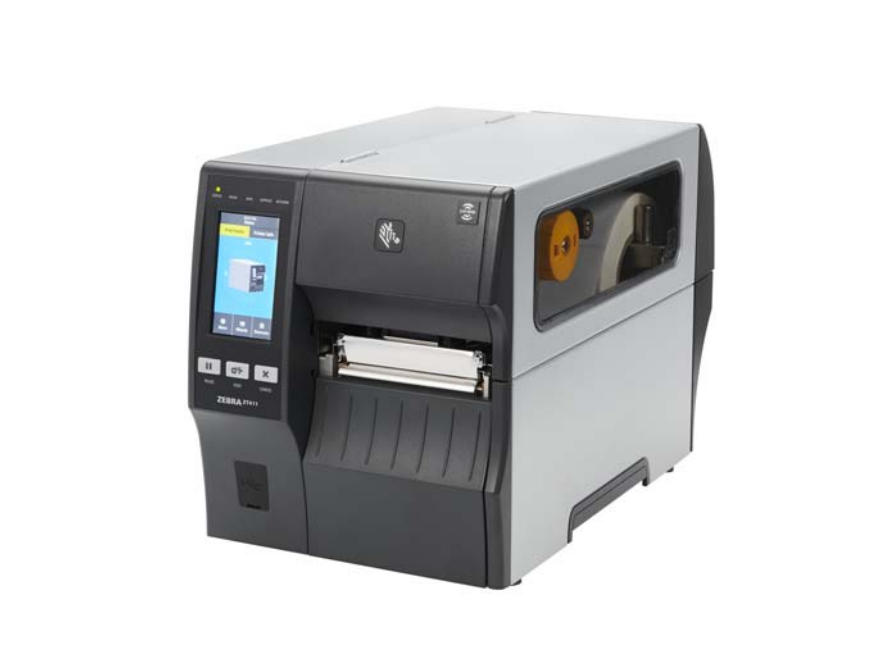
Thermal printers like the Zebra ZT411 and ZT421 rely on precise heat transfer. When the printhead or platen roller is dirty, you may notice:
Routine maintenance not only improves print quality but also extends the lifespan of your printhead and platen roller — saving you from costly replacements.
Zebra recommends cleaning your printer components according to usage:
| Component | Cleaning Method | Frequency |
|---|---|---|
| Printhead | IPA Swab or Cleaning Card | After every ribbon or media roll |
| Platen Roller (Standard) | IPA Swab | After every roll |
| Linerless Platen Roller | Sticky side of linerless label (no alcohol) | After every roll |
| Media & Ribbon Sensors | Compressed air | Every roll |
| Tear Bar / Peel Bar | IPA Swab | Monthly |
🧼 Tip: Use MediTech’s 99% Isopropyl Alcohol (IPA) Cleaning Swabs for safe, residue-free cleaning. Each swab is pre-saturated with high-purity IPA, ideal for removing adhesive, dust, and ink buildup.
When these issues occur, follow the cleaning steps above before seeking service.
Maintaining your Zebra ZT411 or ZT421 printer doesn’t just keep prints looking sharp — it reduces downtime, prevents costly repairs, and extends printhead life. By following Zebra’s recommended cleaning procedures, you’ll ensure your industrial printers operate at peak performance day after day.
Wipe Material : 100% Polyester Spunlace Material Size Dimension : 4.5aa x 4.5aa ( Inches) Thickness Tolerance Closed wrapping Applications : + Al...
Ver pormenores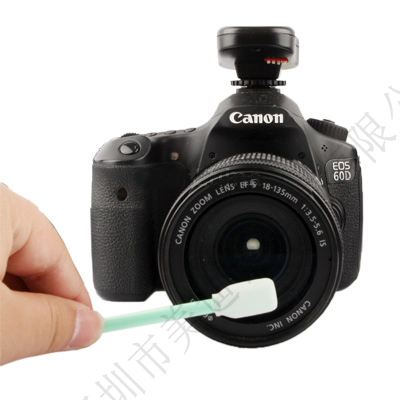
1) Color Green 2) Material Fiber 3) Compatible Camera Models Universal 4) Functions Cleaning digital camera CCD/CMOS chips 5) Other Features The head ma...
Ver pormenores1. For cleaning contaminants from printers 2. 2-3ml 99.9% IPA solution 3. Aluminium Foil Packing Decription Medietch IPA Snap Swabs are specially&nbs...
Ver pormenoresIntroduction of microfiber dust-free wiping cloth Product characteristics of microfiber dust-free wiping cloth: Application of dust-free wiping cloth:
Ver pormenoresIntroduzir o resultado aritmético.
Cálculo incorreto, por favor volte a introduzir.